AI Video Generator with Consistent Characters — How to Keep the Same Face in Every Scene (2026)
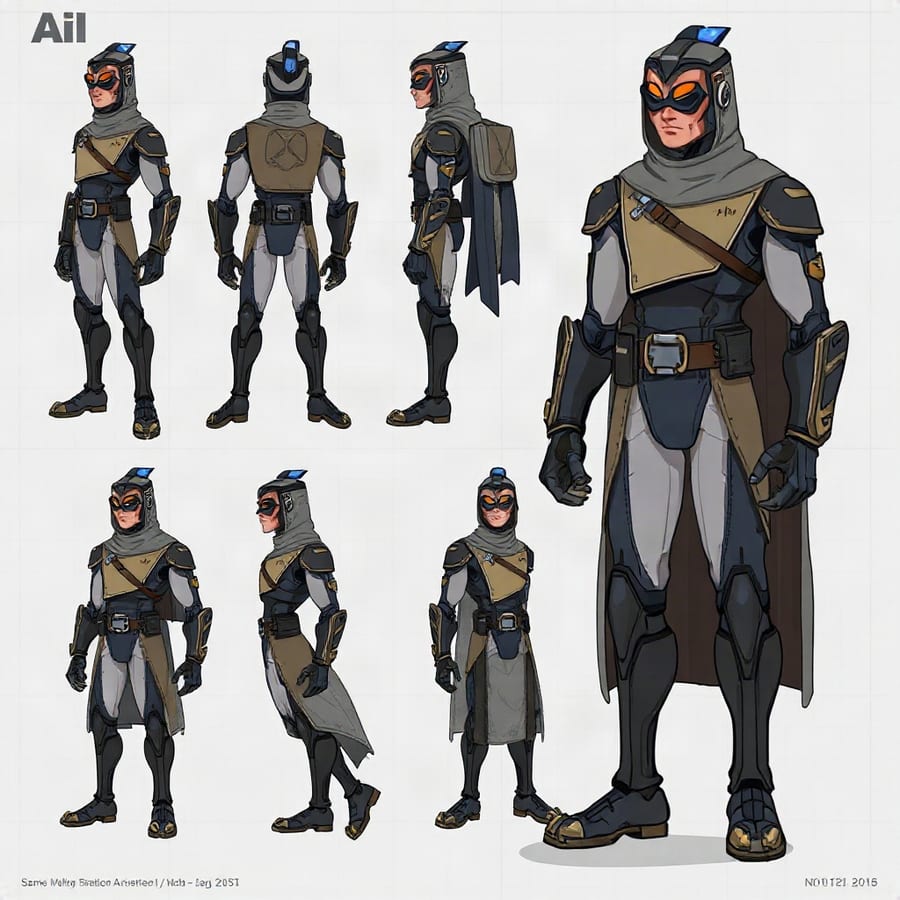
Most AI video tools give your character a new face in every scene, which instantly breaks the story. Here is exactly why it happens — and the reference-image workflow that fixes it.
The Number One Problem in AI Storytelling
You generate scene 1: a detective in a rainy alley. Perfect. Scene 2: the same detective enters an office — except now he has a different face, different hair and a different jacket. The story collapses immediately.
This is character drift, and it is the single biggest reason AI-generated stories look amateurish. Solving it is what separates a watchable AI film from a slideshow of unrelated images.
Why Character Drift Happens
Standard text-to-image models are stateless. Every generation starts from pure noise and your text prompt. The model has no memory of what it produced 30 seconds ago. Even a highly detailed prompt — "35-year-old man, brown eyes, scar on left cheek" — leaves millions of valid faces that all satisfy the description.
Writing a longer prompt does not fix this. Text simply cannot pin down a specific face. You need to give the model the actual image.
The Fix: Reference-Image (Edit) Models
The solution is to switch from a "generate" model to an "edit with reference" model. The distinction matters enormously:
| Model type | Input | Character consistency |
|---|---|---|
| Generate (text-to-image) | Text prompt only | None — new face every time |
| Edit with reference (image-to-image) | Text prompt + reference photo | High — face is carried across scenes |
This is why in Story Studio the image-model selector is split into two explicit groups. If you pick a "Generate" model while characters are attached, the interface warns you directly that the model cannot use reference images — your characters will only be described in words, and the faces will not match.
The Workflow, Step by Step
- Create the character once. In Character Studio, give them a name, age, role and description — then generate or upload a portrait. That portrait becomes the permanent visual anchor.
- Attach characters to your scenes. Each scene declares which characters appear in it.
- Choose an "Edit with Reference" image model. This is the critical step most people miss. Options include FLUX.2 Pro Edit, Nano Banana 2 Edit, Seedream 5 Pro Edit, Nano Banana Pro Edit and GPT Image 2 Edit.
- Generate. The character's portrait is passed to the model as a reference image alongside the scene prompt, so the face, hair, skin tone and wardrobe carry over.
Choosing the Right Reference Model
- Nano Banana 2 Edit (350 coins) — best likeness for faces; the default recommendation for character-driven stories.
- FLUX.2 Pro Edit (350 coins) — sharpest detail, excellent for close-ups and texture.
- Seedream 5 Pro Edit (360 coins) — the most cinematic colour and lighting.
- Nano Banana Pro Edit (660 coins) — premium quality with strong prompt adherence.
- GPT Image 2 Edit (900 coins) — the most literal instruction-following, for complex multi-element scenes.
If you leave the selector on Auto, Story Studio routes automatically: one character uses a single-reference model, multiple characters use a multi-reference model, and scenes with no characters fall back to a cheap text-to-image model at 20 coins.
Practical Tips for Better Consistency
- Use a clean, front-facing portrait as the reference. Sunglasses, heavy shadows and extreme angles all reduce likeness.
- Describe wardrobe in the character bio, not just in the scene prompt, so clothing stays stable.
- Keep casts small. Two or three recurring characters hold together far better than eight.
- Regenerate individual scenes rather than the whole sequence when one shot drifts.
- Budget for it. Reference models cost more per image than plain generation — that premium is precisely what buys consistency.
Try It Yourself
Create a character, attach them to three scenes and pick a reference model at storystudio.picoai.app. New accounts start with 500 free coins, and the Pro plan is $6.99/month for 10,000 coins with a 7-day free trial.
Frequently Asked Questions
Why does my AI character look different in every scene?
Because standard text-to-image models are stateless — each generation starts from scratch with only your text prompt, and text alone cannot specify a unique face. You need an image-to-image model that accepts the character's portrait as a reference image.
Which AI models keep characters consistent?
Reference-image (edit) models: FLUX.2 Pro Edit, Nano Banana 2 Edit, Seedream 5 Pro Edit, Nano Banana Pro Edit and GPT Image 2 Edit. Plain text-to-image models such as Flux Schnell, Imagen 4 Fast or Ideogram cannot maintain a specific face.
Do I need a reference photo for every scene?
No. You create each character once with a single portrait, then attach that character to any scene. Story Studio passes the stored portrait as the reference automatically.
How much does character-consistent generation cost?
Reference-image models range from 350 to 900 coins per scene image, versus 20 coins for basic text-to-image. On Auto routing, a single-character scene costs about 50 coins and a multi-character scene about 80.
Can I use a real photo of myself as an AI character?
Yes — upload your own portrait as the character image and it becomes the reference for every scene. Only upload images you have the rights to use.
Try PicoAI Story Studio free — turn any idea into a finished AI video.